In Aimgod: Aimgod for iPhone, live now
The Aimgod iPhone App 2.0 Is Out: The Day, Ask AI and Voice, Explained
Aimgod 2.0 is in the App Store today. A walk through the Aimgod iPhone app: the day list, subtasks, the task card, Ask AI, planning by voice and the dashboard.
 By Oleksandr Sendziuk, founder of Aimgod · · 10 min readFollow on LinkedIn ↗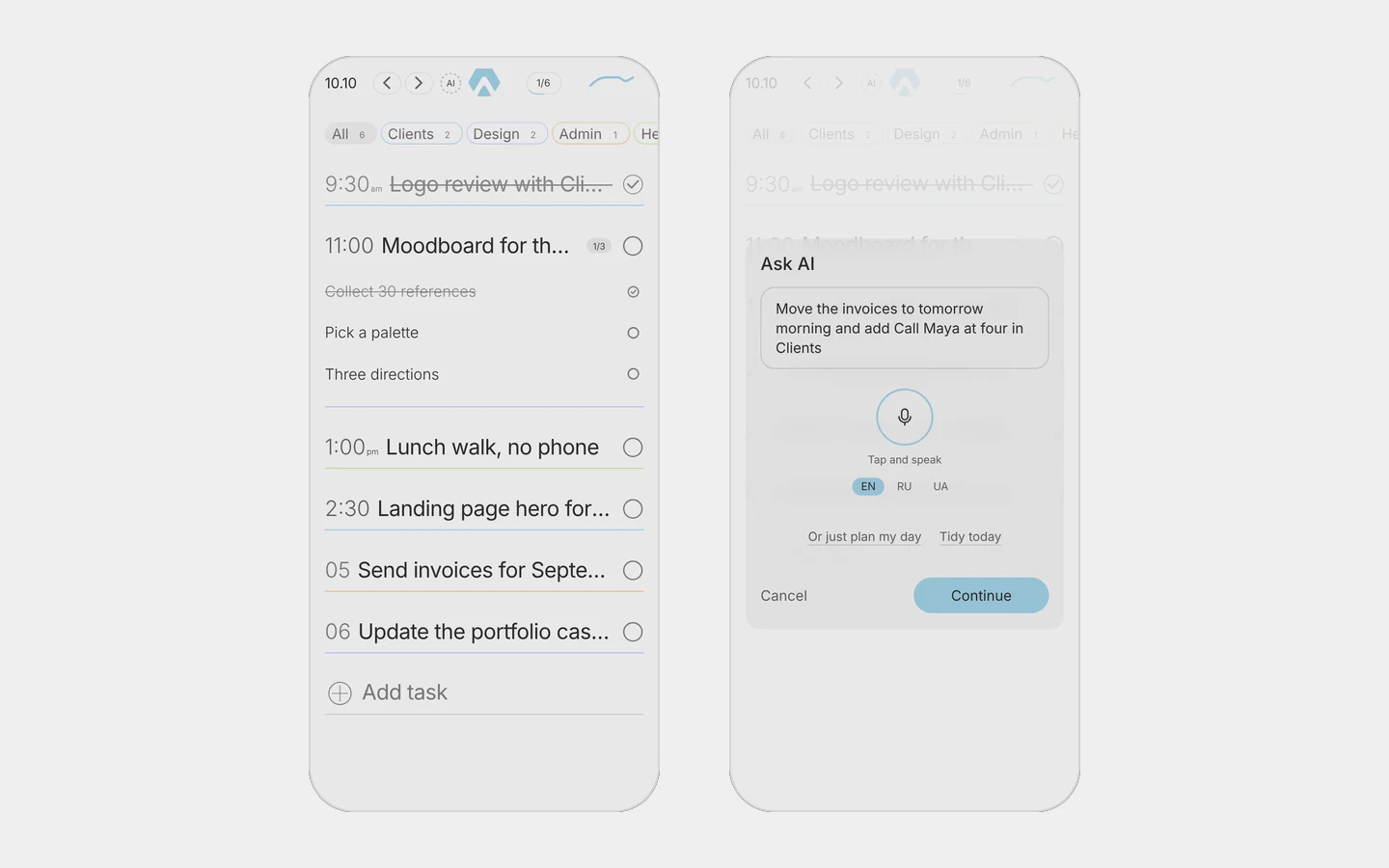
Aimgod 2.0 for iPhone is out. Today, in the App Store: get it here.
It's the same App Store app as the old Aimgod from years ago. I took it off the store back then. Now it's back, rebuilt from zero, native, with the same account you use on the web. This post walks through the Aimgod iPhone app piece by piece, the way I'd show it to a friend at the next desk. It's long. The voice part is the one I explain most carefully, because people ask about it the most.
How the release went
I sent build 17 for review on October 9, at 22:58 Kyiv time. A little over an hour later Apple approved it. I expected a day or two of waiting. Didn't happen.
Seventeen builds. Each one went to my own iPhone first, I found what jumped, blinked or felt slow, wrote it down, and the next build fixed it. Subtasks that jumped when you tapped fast. A time that blinked while the ruler folded. Dictation that froze the phone. Text that vanished after a pause, then text that showed up twice. All of that is gone in 2.0.
And the very first thing I did after it went live? Found a new bug. The logo in the header is supposed to turn into sand every now and then and gather back. On a real iPhone it just doesn't play. Within the same hour I started on 2.0.1. So yeah, that's how it goes.
The Aimgod iPhone app, screen by screen
The day list
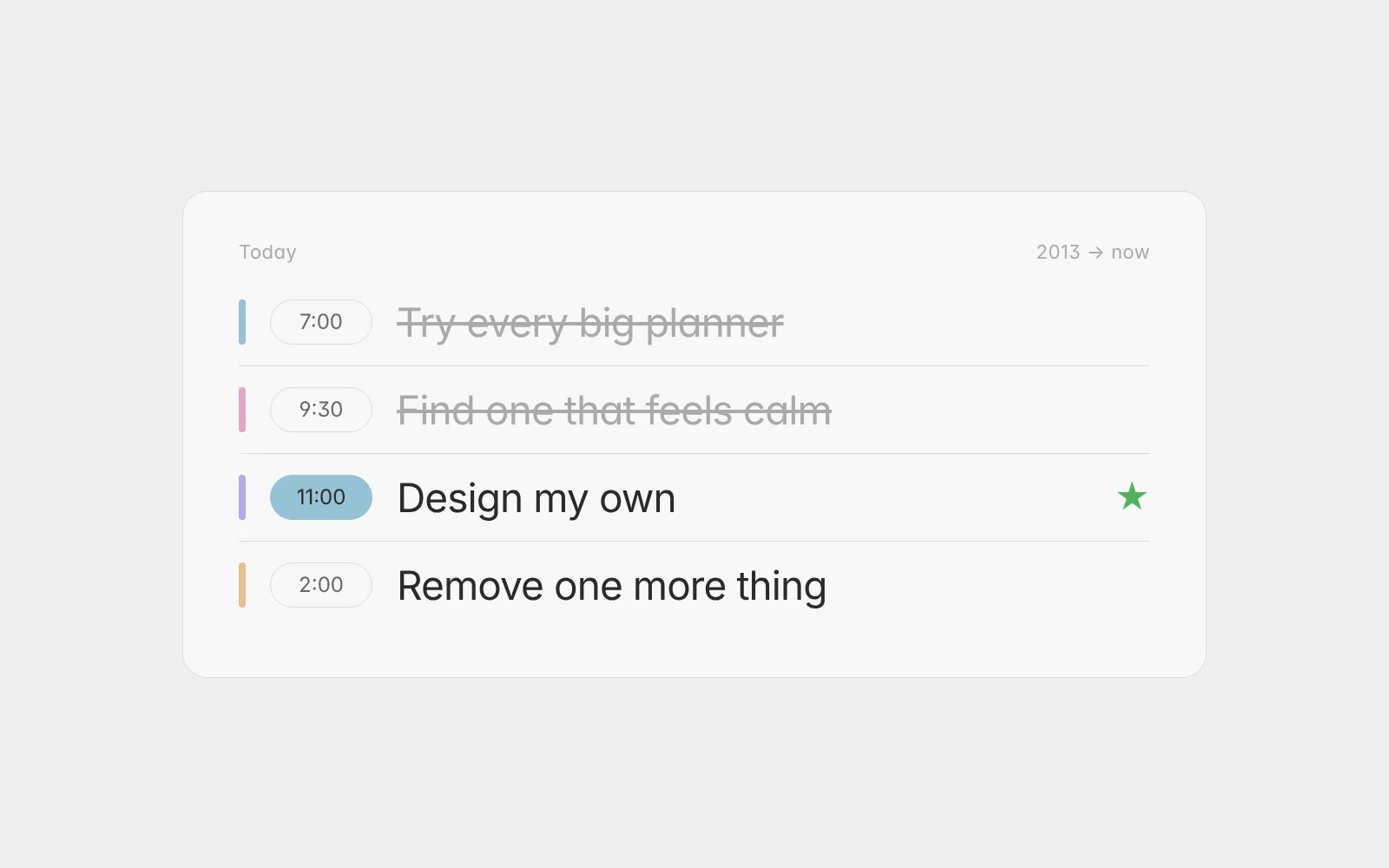
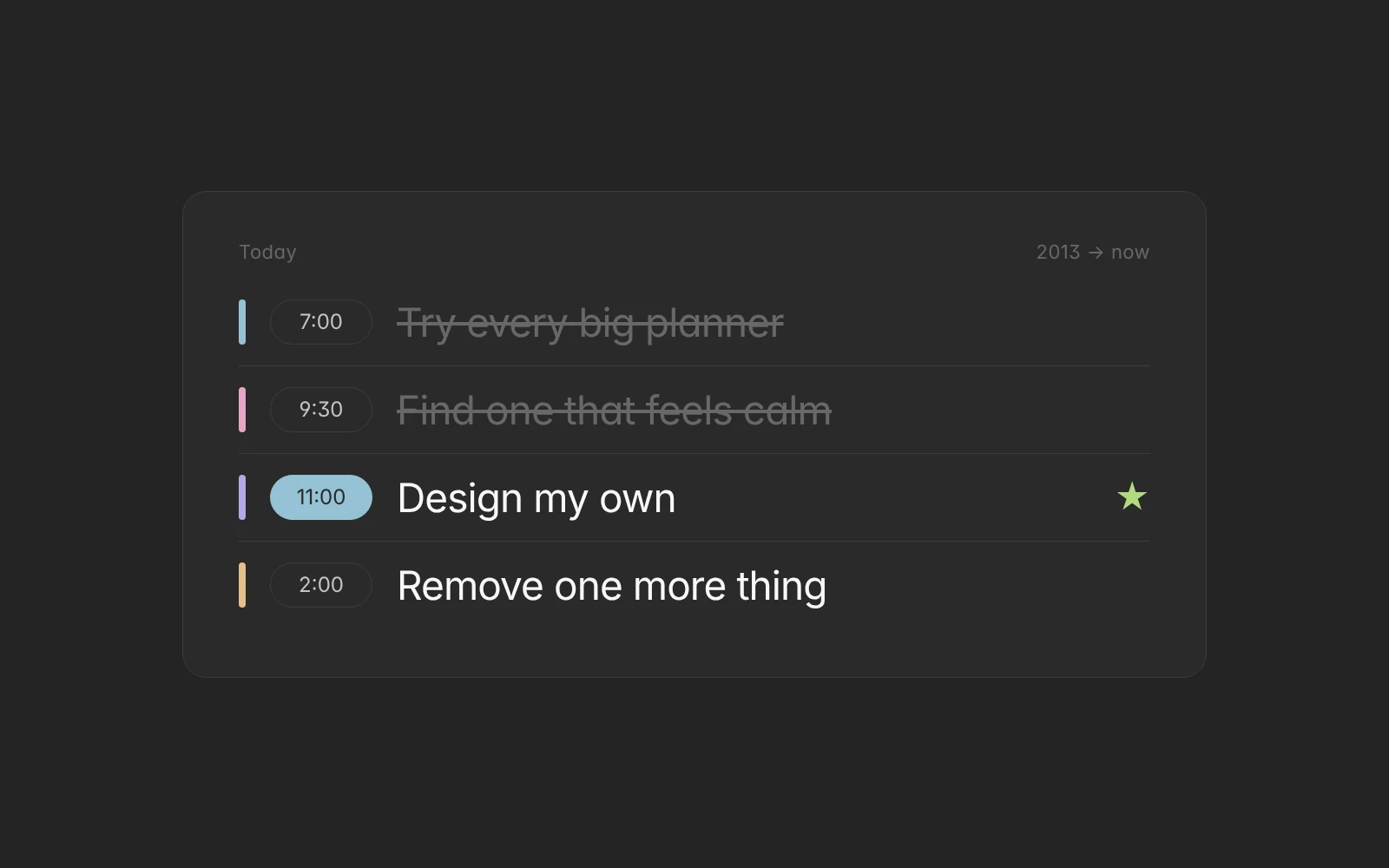
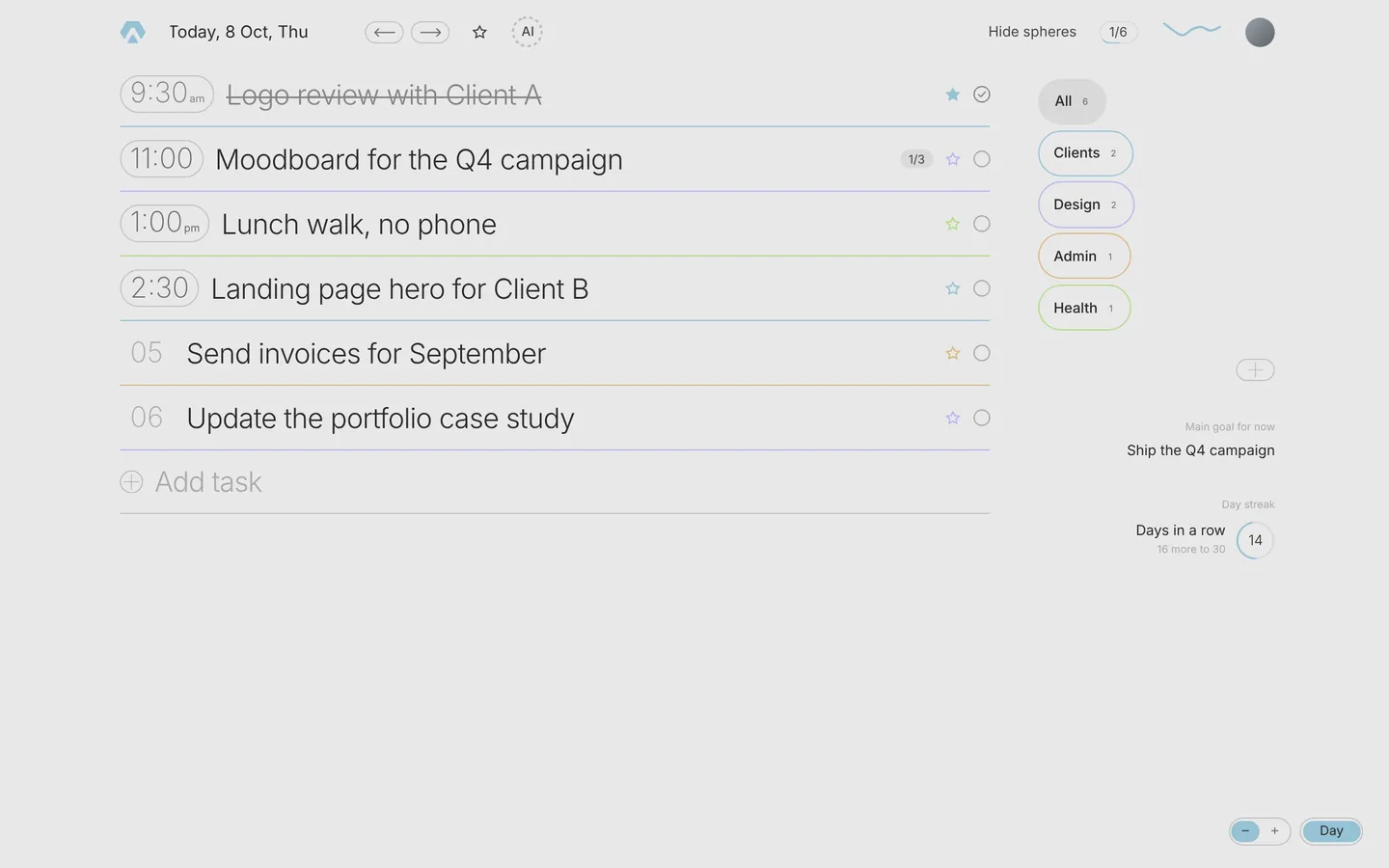
You open the app and see today. One list. Tasks with a time come first, in time order. Tasks without a time follow in the order you gave them, each with its number: 05, 06. Done tasks stay in place, struck through, so the day keeps its shape.
The header is one line: the date, arrows to the day before and after, the AI button, the logo, a counter like 1/6, a small wave and your avatar. Swipe left or right to change the day. Tap the date for a calendar. The wave shows your last seven finished days, today is not in it, so finishing a task now never moves the line. When you scroll, the header folds into a small island and opens again when you scroll back up.
Setting a time
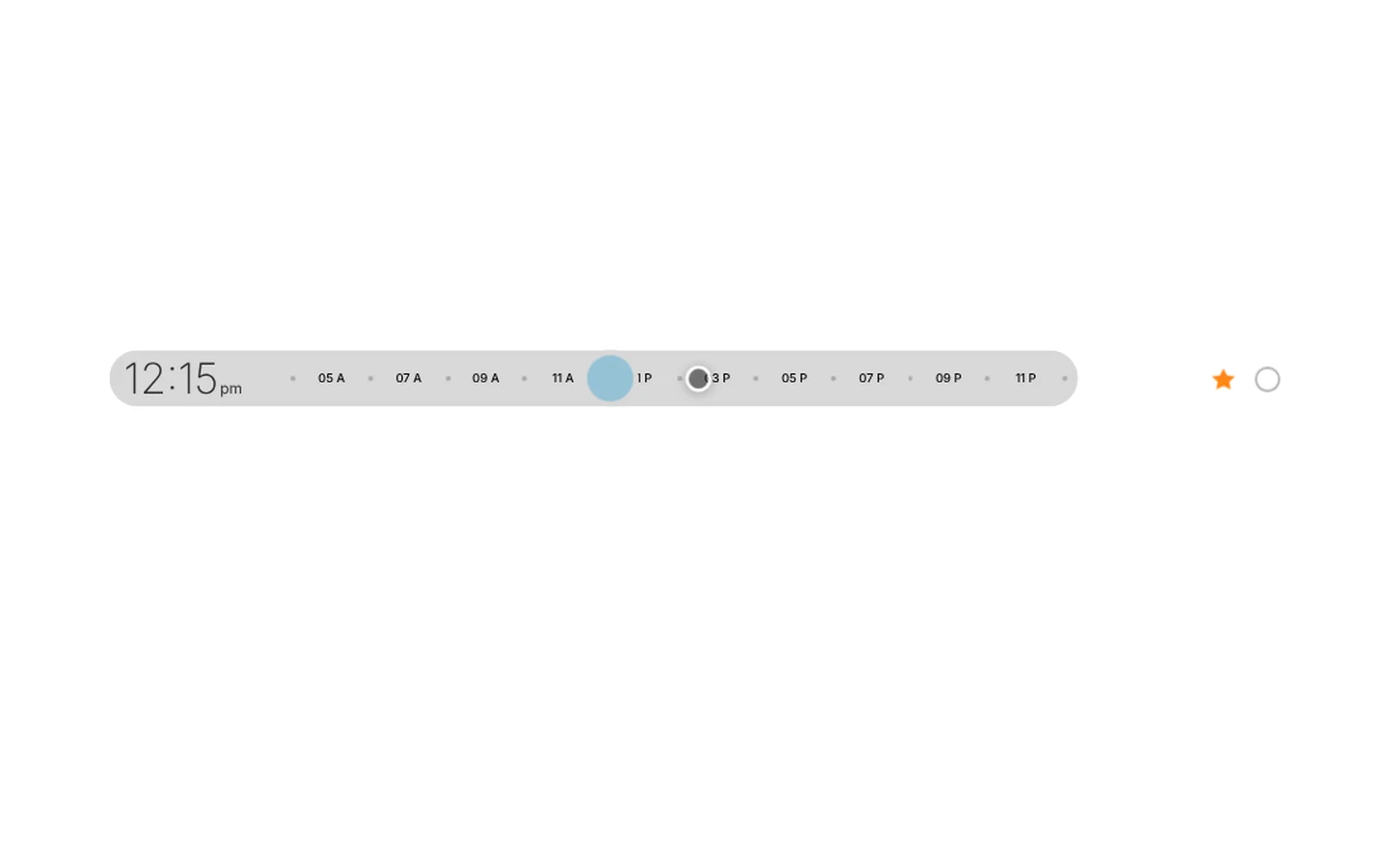
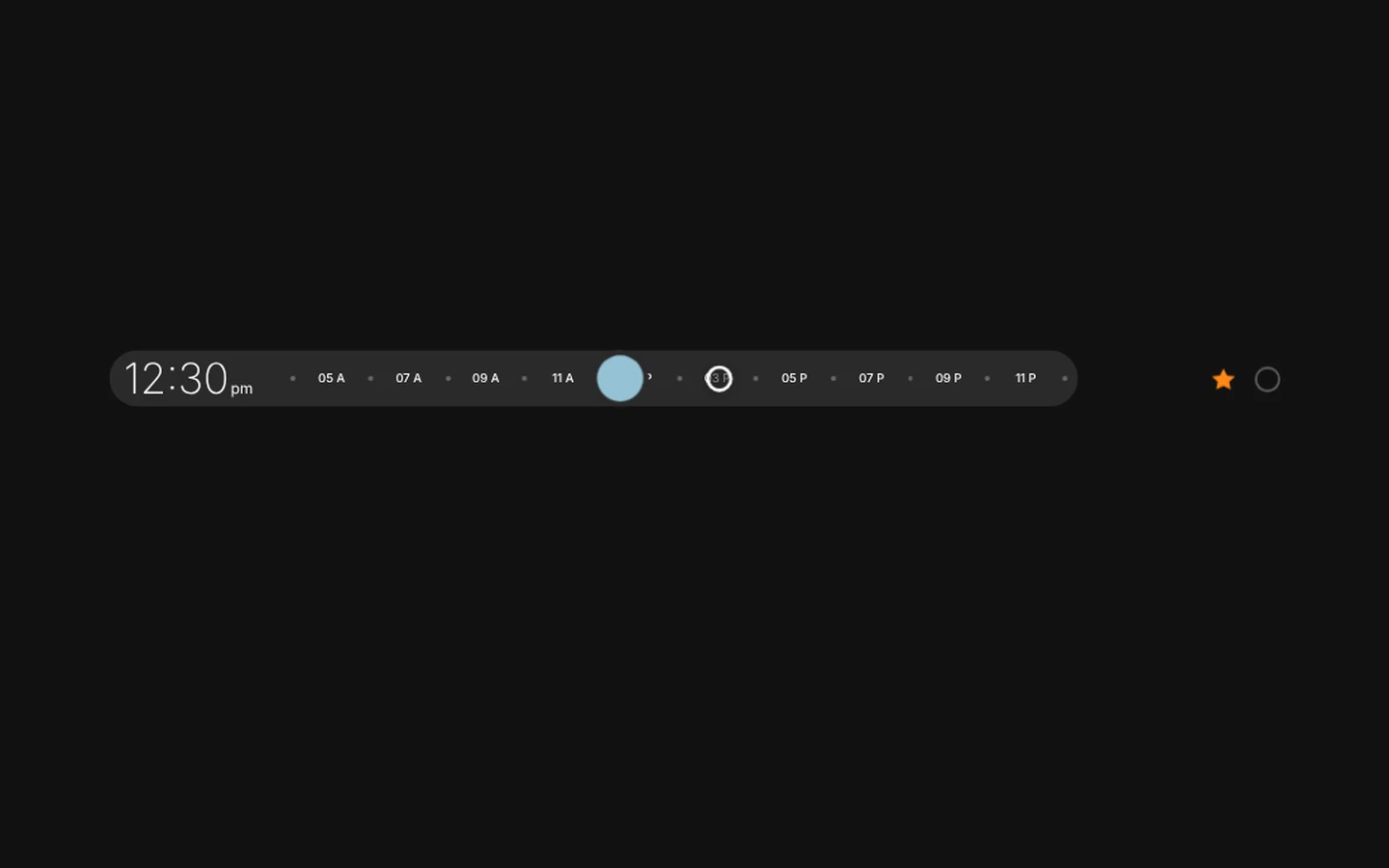
Tap the number on the left of a task. The row turns into a ruler. Slide, let go, and about a second later it folds back with the new time. The ruler moves in quarters of an hour, and the phone gives a small tick on every step. It loops like the iPhone time wheel: past 11:45 PM you are at midnight again, with a slightly stronger tick, so you never slide back across the whole day. I wrote a full post on why it's built this way: a time in two taps.
Subtasks right in the row
A task with steps shows a small counter, 1/3. Tap it and the steps open right under the task, in the list. Tick them there. No card, no extra screen. This is the part I use most when a task is really five small ones. To delete a step, clear its text. It goes at once.
The task card
Tap a task and its card opens in the middle of the screen. Tap its number in the card and the same ruler sets the time. Under the title there are icon tabs, one panel at a time:
- Description: your notes first, then the steps with their progress.
- Reminder: a month calendar to move the task, quick chips Tomorrow, Day after and Next week, and when to remind you.
- Repeat: every day, every week, on weekdays, on weekends, every month, every year.
- Habit: only on a repeating task. Eight weeks of bars, the rate over the last 28 days, the streak, one verdict and one piece of advice, with a button to accept it.
- Sphere: the life areas this task belongs to. A task can have several.
Change the time in the card of a repeating task and the whole series follows. Change it on the row and only that day changes. Move a task to another day and a small dark line says where it went, with Undo. Reminders come as notifications with a Done button, so you can close a task from the notification.
Spheres
Under the header is the strip of spheres, your life areas with their colours: work, health, home, whatever you have. Tap one to see only its tasks. Tap it again to rename it, change its colour or remove it. The plus at the end adds a new one. If you want to know why I plan with spheres, I explained it in one planner for many kinds of days.
Ask AI: say what you want, check, apply
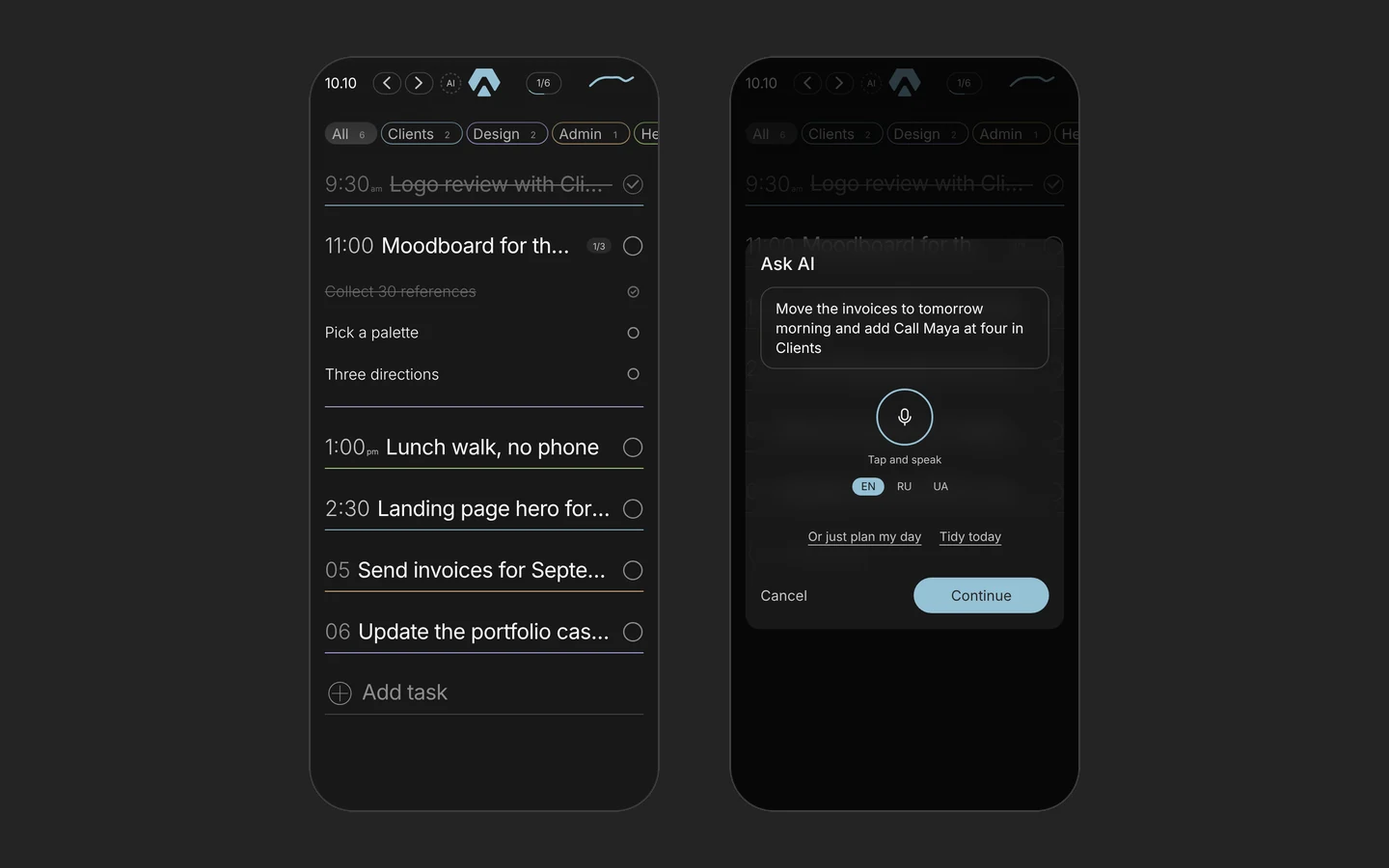
The AI button in the header opens Ask AI. The first time, it asks your permission: your request and the tasks of the day you're looking at go to Anthropic (Claude) to make the tasks, and they are not used to train models. Nothing is sent until you allow it.
What you can ask
Write or say it the way you'd tell a person. A few things that work:
- "Gym tomorrow at 7, remind me."
- "Move the invoices to tomorrow morning and add Call Maya at four in Clients."
- "Rename Dinner to Dinner with my parents."
- "Spread these over the week."
- "Make today's tasks sound sharper."
It sees this week and the next, so it can move and spread tasks across days. It never moves tasks you've already done. If you ask something vague, like "move some tasks to another day", it picks and shows you a proposal. If it really can't help, it answers with one short line, a question like "Which day should I move them to?"
Don't know what to write at all? Tap "Or just plan my day". A few quick questions, one per screen, about your focus, how you work, what to include, your energy, anything else. Then it plans the day.
The preview
This is what makes it an AI day planner for iPhone you can trust: Ask AI never changes your day on its own. First you get a preview: new tasks, changes shown as before and after, and deletions, each with its sphere colour and a short note on top. Don't like one item? Remove it with the cross. Then Apply. If the whole thing is off, tap Edit and say it differently. Ask AI has a daily allowance, and the popup shows how many asks are left today.
What the status line says
While it thinks, one line: "Thinking…". While it applies, the line says what is really happening, built from your own changes: "Adding tasks…", "Renaming…", "Setting times…", "Moving tasks…", "Changing spheres…", "Deleting…". At the end a result line stays for a second and a half, "Tasks added" or "Changes applied", and the popup closes. The day updates by itself and your reminders are recalculated. One honest note: in 2.0 a mixed request, say rename one task and add another, sometimes only says "Syncing". 2.0.1 fixes that.
How voice planning works, step by step
This is the part I'm proudest of, and the one that took the most builds. If you want to plan your day by voice, here's exactly what happens, in plain words.
- 01You tap the microphone in Ask AI. The very first time, the iPhone asks two things one after the other: the microphone, then speech recognition. If you say no to either, you get one calm line with a link to Settings.
- 02You pick the language you speak in. The app remembers it.
- 03You talk. The mic turns blue and gently pulses, and under it you see "Listening… tap to stop". Recognition is Apple's own, on the phone when your iPhone supports it. If it doesn't, it needs a connection and says so.
- 04You pause. Think. Look out of the window. Nothing gets lost. Everything recognised stays in the field until you delete it yourself. After a pause the iPhone sometimes starts recognising from scratch and re-sends the last words; the app keeps each phrase once and adds the new words after the old ones. This took three builds to get right.
- 05You finish. Tap the mic to only stop, or tap Continue right away. Continue stops listening, waits about a second for the last words, and sends your request at once. If nothing was heard, nothing is sent.
- 06Your words become tasks. "Call the dentist tomorrow at ten, remind me fifteen minutes before, it's Health" turns into a task with a title, a date, a time, a reminder and the sphere it found among yours. It can also set a duration or a repeat.
- 07You check the preview and tap Apply. Only now is anything saved.
So you can stand in the kitchen, say your whole morning in one breath, look at the list and tap once. That's what I wanted: to plan your day by voice, and still decide yourself. For me that's the whole point of an AI day planner for iPhone. Want a feel for it before you install? There's a page on how the AI day planner works, and you can click around the live demo with no sign up.
The dashboard: your week on one page
Tap the wave in the header, or Productivity insights in the profile menu. The dashboard opens under the same header, with "Back to Today" on the right. A second tap on the wave also takes you back.
- The week: done and planned as bars, day by day. You see at once which days were honest and which were wishful.
- Done by sphere: where your done tasks went. If one colour eats the whole week, you'll see it.
- The streak: how many days in a row you got something done. It counts any done task, so a small day still counts.
- Wins and habits: short pills with your best results of the week, and how many habits you kept.
The cards come in one after another when the page opens, the bars grow, the numbers count up. Then it all stays still. I explained why I measure plan against fact in why the list stays short.
Live Activity, Dynamic Island and widgets
When a task with a time starts, it shows on the Lock Screen and in the Dynamic Island: the Aimgod mark and the time left as a countdown. Long press the island and you get the title, its time range, how many minutes are left and a Done button. Tap Done and the island shows a thumbs up, then a check, and goes away. The task is done without opening the app. There's a switch in Settings if you don't want it.
There are widgets too: today on the Home Screen and on the Lock Screen, where the ring next to a task is a real Done button. And two buttons for Control Center: Add task and Ask AI.
One account, the web and the phone
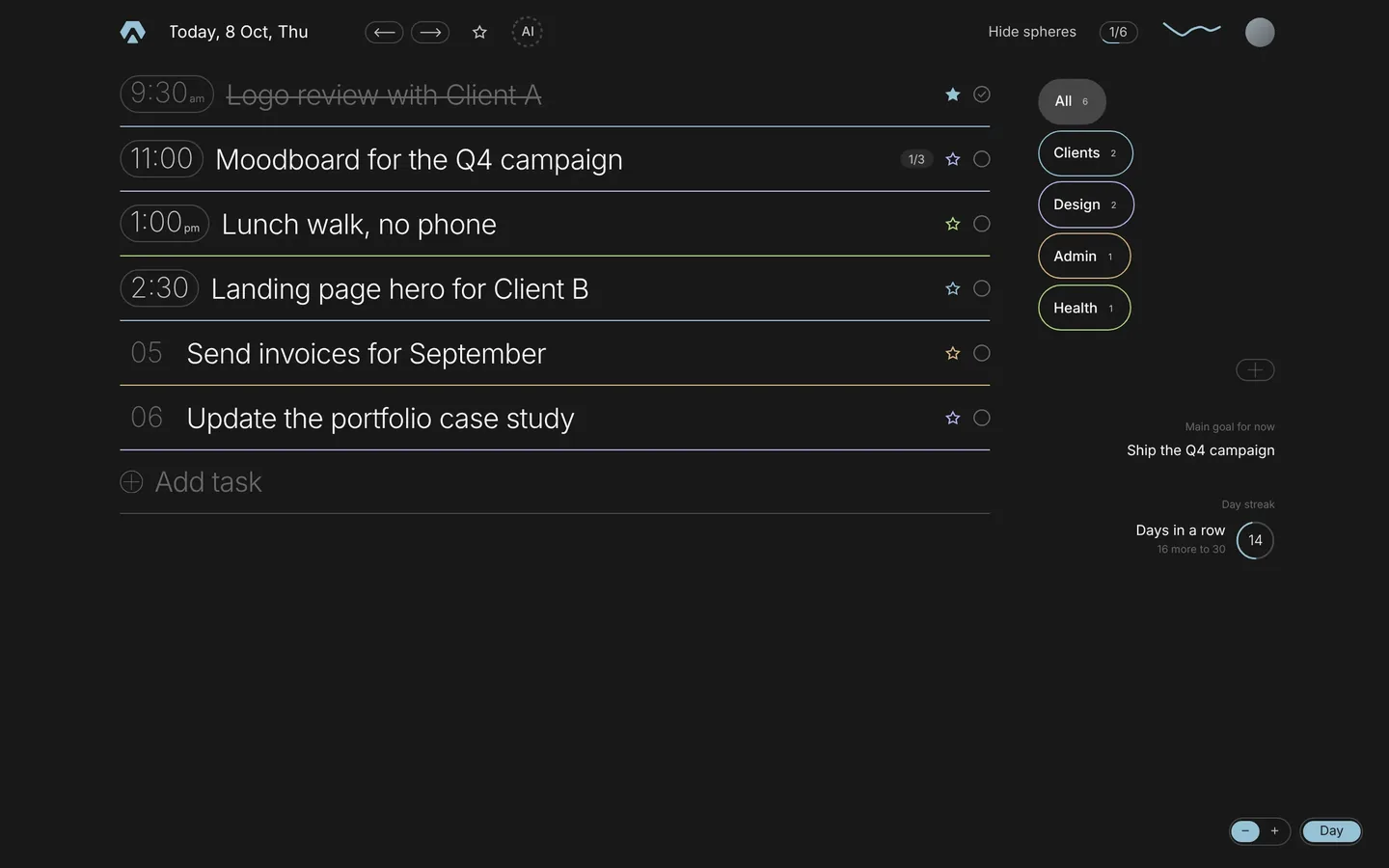
Sign in with Apple or Google, the same way as on the web. Your tasks, spheres and steps are the same everywhere and update live: tick a task on the phone and the web shows it. Light and dark follow your iPhone. It's a daily planner app for iPhone that feels like the web one, because it copies its motion and its words. If you lose the connection, your changes wait and go out when you're back online. Ask AI needs the connection, so its button goes quiet offline.
What comes next
2.0.1 is already in the works. Plans, not promises:
- The logo sand that plays on the iPhone, the bug from the first hour.
- The whole app in Ukrainian, with dictation in Ukrainian.
- The voice rays around the mic, like on the web.
- Ask AI status lines for every step, and a taller Ask AI window.
- The date and the weekday taking turns in the header, so you always know it's Friday.
After that, 2.1: Focus and Goals on the phone, the full dashboard history, Apple Calendar and Google Calendar, more widgets and Siri. Later, iPad and Apple Watch. If you've read why I built Aimgod, you know I'd rather remove one more thing than add one. Same rule here.
That's it. Install the Aimgod iPhone app, plan tomorrow tonight, and tell me what jumps. Aimgod in the App Store.
FAQ
Where do I get the Aimgod iPhone app?
In the App Store: Aimgod on the App Store. Search for Aimgod or open the link on your iPhone. It's not available in App Store storefronts in EU countries yet; it will come there later. Until then the web app works everywhere.
Is it the same account as the web app?
Yes. Sign in with Apple or Google, the same as on the web, and you see the same days, tasks and spheres. Changes on one side show up on the other right away. The daily planner app for iPhone and the web app are one planner, two screens.
Does planning by voice need the internet?
Speech recognition runs on the phone when your iPhone supports it; otherwise it needs a connection and tells you so. Turning your words into tasks is done by Ask AI, and that always needs a connection. Nothing is saved until you look at the preview and tap Apply.
One calm letter a week
A short read on planning, habits and focus, from the founder of Aimgod. No spam, unsubscribe anytime.
We only use your email to send the letter. Privacy
Oleksandr Sendziuk shipped an app and found a new bug in it within the hour. Fine, that's the job.
Follow the build on LinkedIn ↗