In Aimgod: Claude in tasks, live now
How to Orchestrate AI Agents From Your Own Day: 1 Switch, 3 Examples
The tasks are tracks. Aimgod is the deck. You decide what plays next.
 By Oleksandr Sendziuk · 8 min readFollow on LinkedIn ↗
14:10. I'm back from lunch. Third line in my day: a client wrote. I open the task, the letter is right there. I type two lines for Claude: what to answer, which file to attach. Save. The line under the task starts running as dashes. I'm already on the next one. Two lines below stands the gym at 18:00.
This post shows how to orchestrate AI agents from your own day in Aimgod: what to write, what to switch on, what you see while Claude works. Three examples, then the limits.
Key takeaways
- 01The task is the instruction. A short title, the description says what to do.
- 02One switch. Open the task, AI tab, turn Claude on. Claude starts by itself.
- 03Dashes mean work. The line under the task runs while Claude is on it.
- 04You answer in the task. A short note wakes Claude again.
- 05Your life is in the same list. The gym stands between two tasks for Claude.
1. The deck
I DJ, so this picture is mine. The tasks are tracks. Aimgod is the deck. You are the DJ: you put the right track on at the right time, listen, correct, bring in the next one. That becomes a set.
You can play tracks one after another without a deck. It is not a set.
Decks come in many kinds. Every tool for working with AI agents offers its own: some draw cards joined by lines, some draw schemes with agent one and agent two. Mine is a plain list of the day with the agent in it. The same idea would work in other task managers. Here is how to do it in Aimgod. Why agents need a list at all, I covered in how to manage AI agents from one daily list.
Get the free 2027 Planning Kit
9 printable pages: your year on one page, 3 goals with a plan for the obstacle, a 90 day map, the weekly review, a daily page and a 67 day habit tracker. Plus one calm letter a week.
We only use your email to send the letter. Privacy
2. Orchestrate AI agents: how a task gets to Claude
- 01Write the task. A short title. The description is the instruction: what to do, where to put the result, what Claude must not do on its own.
- 02Open it and go to the AI tab. Turn Claude on. Under the switch it says "Waiting for Claude".
- 03Claude takes it. With the Aimgod worker set up, Aimgod wakes your Claude at once. The line under the task turns into running dashes. The number of tasks with Claude shows in the header.
- 04Claude hands it in. The line is solid again. In the AI tab: "Ready to review", a short note from Claude and the Result link.
- 05You answer. Type a short note in the field for Claude. Send. Claude wakes again and continues.
- 06You tick Done when you are happy with it. Claude never does.
The day updates by itself when Claude takes the task and when it hands it in. You don't sit in front of a complex interface and you don't refresh anything.
If you would rather give the work in Claude and only collect the results in Aimgod, that is the other flow: Aimgod as the organizer.
3. Three examples
A client's letter
Works for any service business. Claude checks the mail on its own schedule. A new letter from a client becomes a task in the Clients sphere: "Answer Nord Bakery", with the text of the letter in the description.
I open the sphere and read the letter right there, without going into the mail. Then a note in the task:
Answer that Friday works. Attach the price list from my Google Drive, the November one. Ask which of the two logos they chose. On their site change the phone number in the footer to the new one.
Reply sent with the price list attached. The footer has the new number, here is the page. I asked about the logos.
I save the note and move to the next task. Google Drive and the site are connected in my Claude, so Claude does it with its own connectors. Aimgod only shows the state.
Pictures to choose
Claude drew six covers. The task holds the links to them. I open it, look, and write which ones go out:
The second and the fifth. Publish the second today, the fifth on Thursday morning. Delete the rest.
The second is published, the fifth is scheduled for Thursday 9:00. Links are here.
A post for social media
Claude hands in a draft with a link. I read it on the phone and answer in one line:
Shorter. Drop the last paragraph. Schedule it for Thursday morning.
Cut to 90 words, last paragraph removed, scheduled for Thursday 9:00.
4. A walk through the day
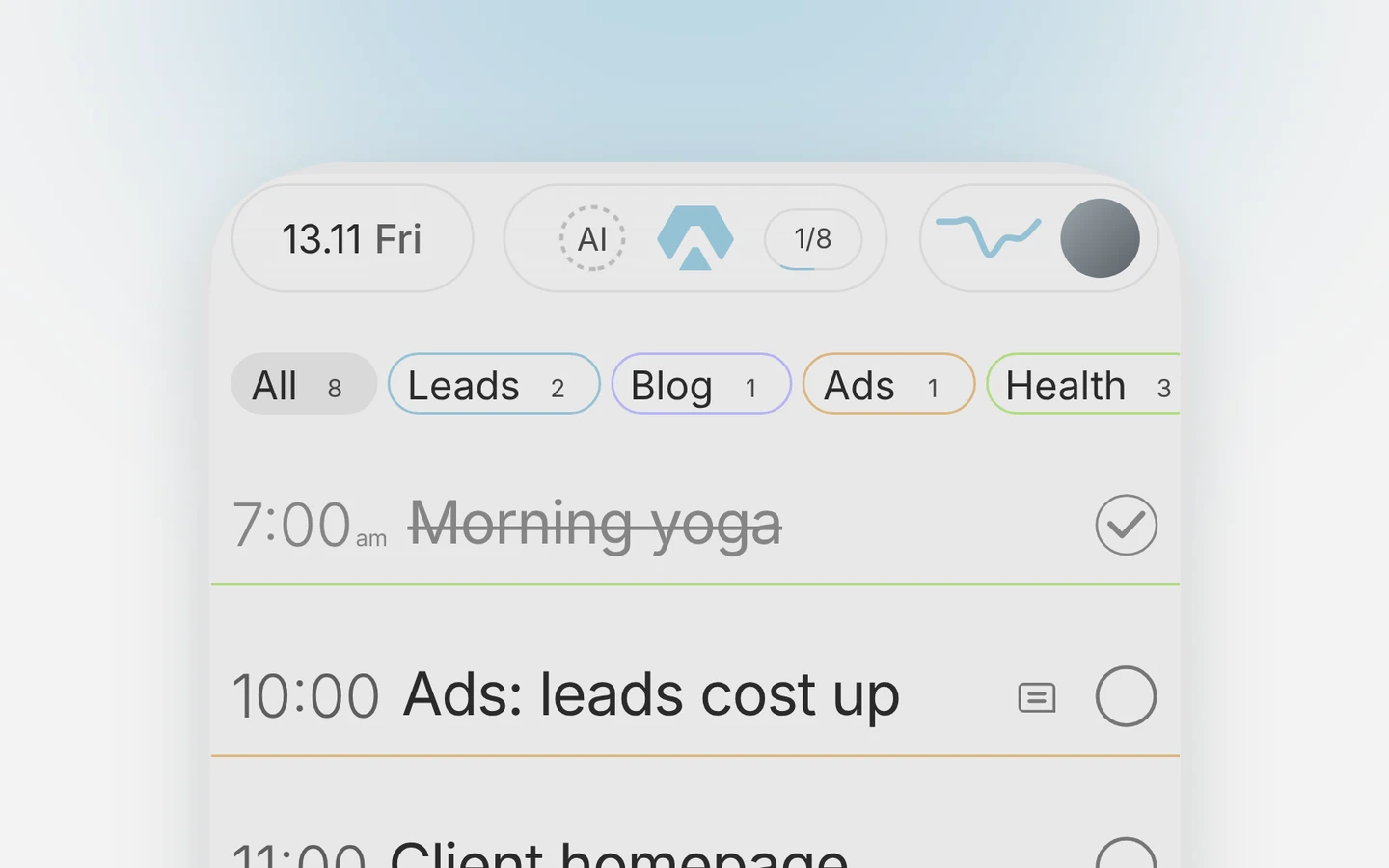
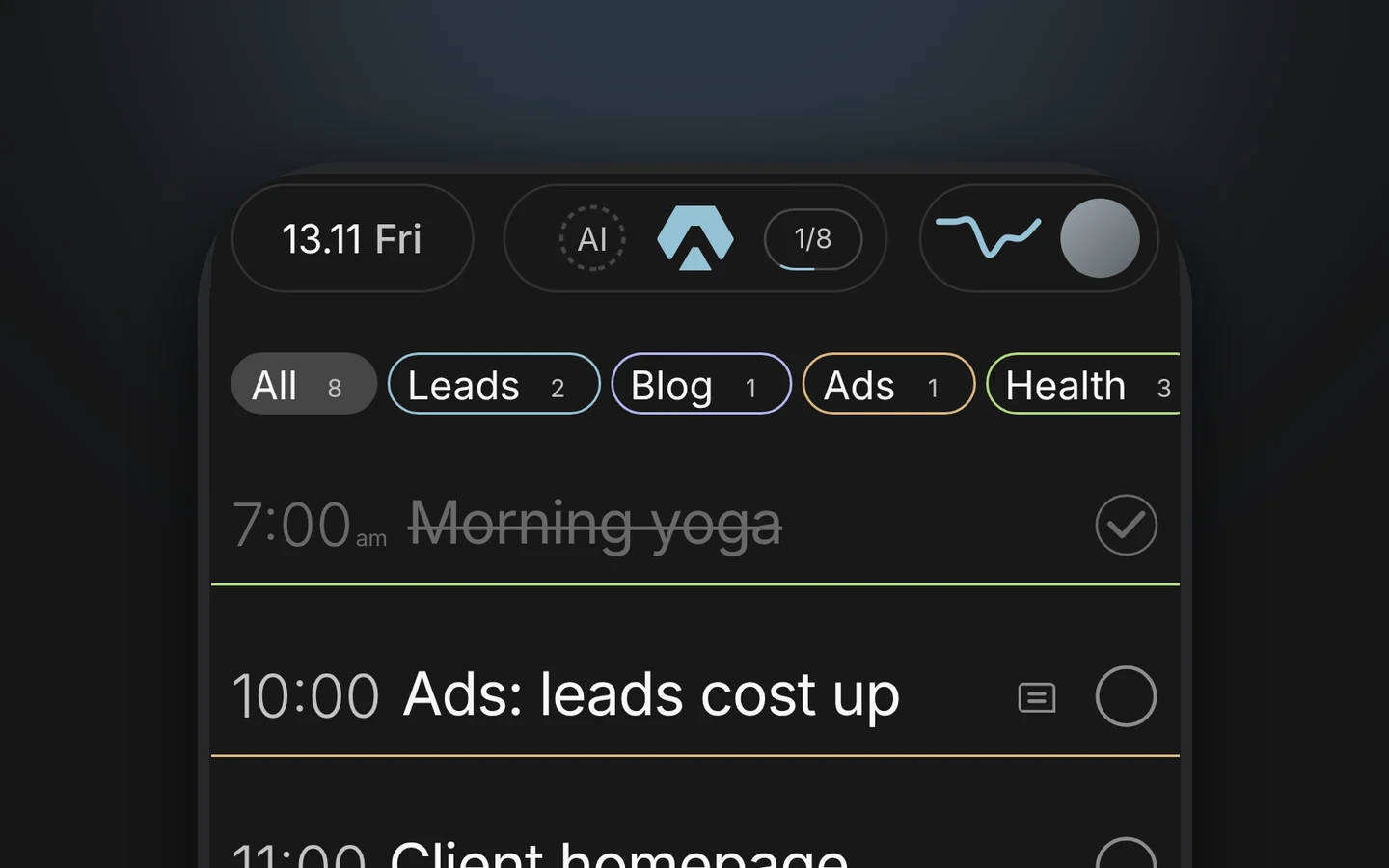
This is the part I built it for. The agent's tasks stand mixed with your own life, in one list. A day can look like this:
| Time | Line | Who |
|---|---|---|
| 7:30 | Yoga | You |
| 9:00 | Upwork: 5 fresh jobs | Claude, running |
| 10:00 | Client homepage, first screen | You |
| 13:00 | Lunch and a walk | You |
| 14:00 | Answer Nord Bakery | Claude, ready to review |
| 15:00 | Check what Claude wrote for the blog | You |
| 17:30 | Pick up the kid from kindergarten | You |
| 18:00 | Gym | You |
| 20:00 | Dinner with your wife | You |
You go down the list task by task. You answer, Claude works behind you. And between those tasks stands the gym, so you don't forget it.
Many tools for AI work show only work tasks. That is good in its own way, and it is a separate world. Aimgod doesn't switch you off from your life. Work alone, with a few people or with a big team: the list is the same.
5. How to write the task
A task named "Upwork" with an empty description gets questions back, from a colleague and from Claude alike. Claude will not guess: with only a title it answers with a short plan or one to three questions and waits.
| Title | Description | |
|---|---|---|
| Weak | Upwork | (empty) |
| Good | Upwork: 5 fresh jobs | Find five product design jobs posted in the last day. Skip agencies and anything shorter than a week of work. For each one: the title, the link, one line on why it fits. Put them here as subtasks. Don't apply to anything. |
My test: could a new person on the team do it from this text alone? It is the same test as in how to plan work for a team. Three things I always write: what counts as done, where the result goes, and what Claude must not do on its own.
6. The limits
- Short notes fit in the task. Long talks don't. Five minutes of bugs for an iPhone build is easier to say in Claude: follow the link from the task. Every note in a task wakes a fresh Claude that knows only what is written in the task.
- The worker takes several steps to set up. Ten, in Settings › Connections, on the web. It is for people who are already used to Claude. Without it you say "Take my Aimgod work" in Claude, and it takes what you switched on.
- The switch is per task. On a repeating task it covers the series from the day you turned it on.
- Claude sends things to other people only after your word in the task. And the tick is always yours.
- It runs on your own Claude. Your plan, your limits, your memory, your connectors. On the Aimgod side all of this is on the free plan.
The AI inside Aimgod is a different thing. It adds and moves tasks when you ask. It doesn't go into your mail or your documents. Your own Claude does.
Tonight: take one thing you would hand to an assistant tomorrow. Write it as a task with a real description. Open the AI tab and turn Claude on.
FAQ
What does it mean to orchestrate AI agents from a day planner?
You hand work to your agent from the same list where the rest of your day stands. In Aimgod a task gets a Claude switch. Claude takes the task, the list shows it is in work, and the result comes back into the same task for your check.
Does Claude mark my tasks as done?
No. Claude hands the work in with a note and a link. The task stays open until you tick it.
How fast does Claude start?
With the Aimgod worker in Settings › Connections, at once after you turn Claude on or send a note. Without the worker, when you say "Take my Aimgod work" in Claude.
Is it free?
On the Aimgod side, yes. The work runs on your own Claude plan. The worker needs a paid Claude plan.
Terms used in this guide: Subtask, Five minute rule, Sphere, Claude connector
The planner behind this post
- Free
- on the web and on iPhone, in the App Store since October 2026
- 1 account
- one day on the web, in the phone browser and in the iPhone app
- No demo login
- the live demo opens without an account